





How to Fix ZKTeco Authentication Error on Biometric Devices

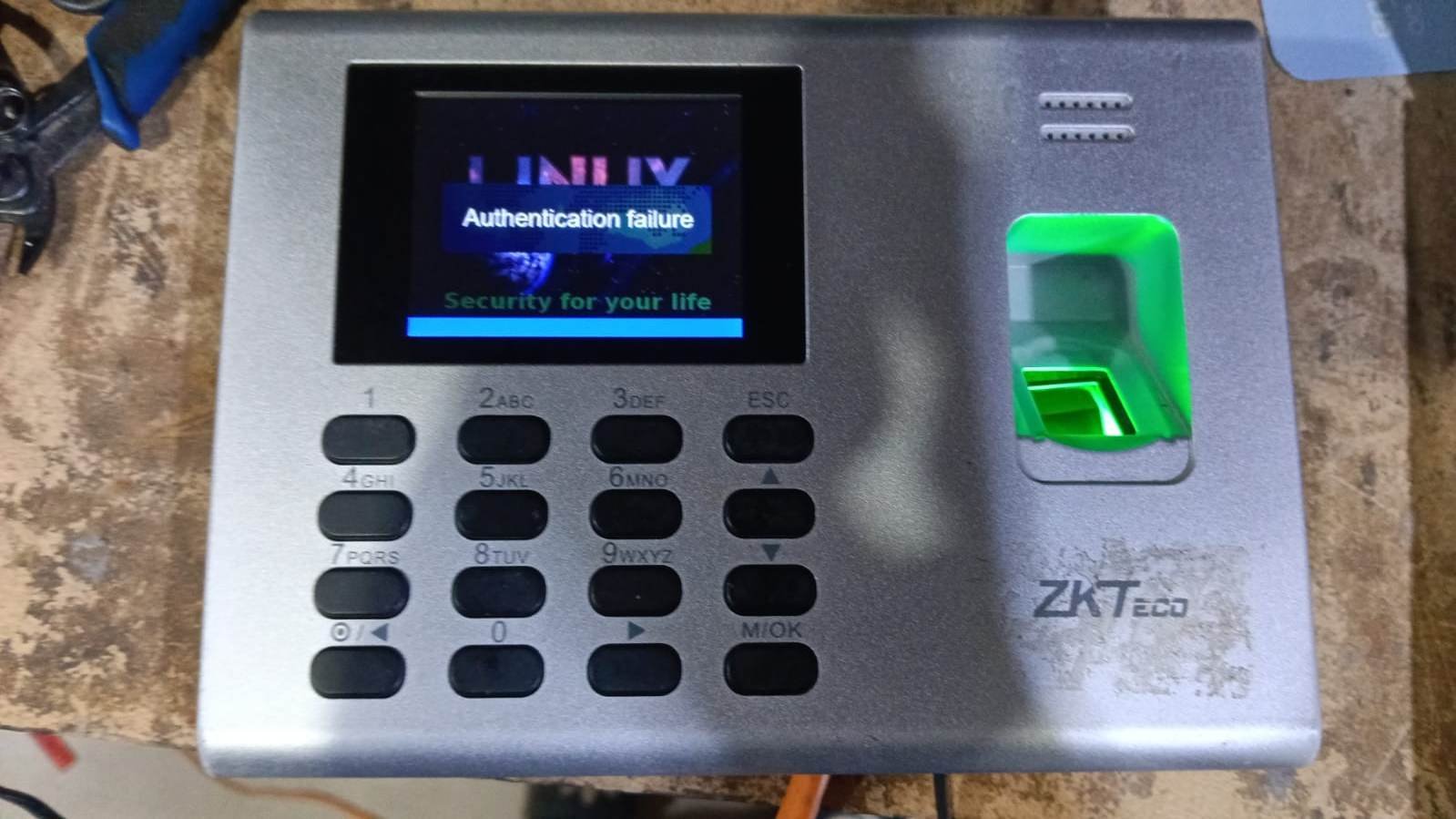
ZKTeco Authentication Failure Fix 2026
How to fix Authentication Failure Error in ZKTeco Biometric Terminals such as K40, F18, SpeedFace Series, SenseFace Series and more.
ZKTeco Authentication Error Support in Kenya & East Africa
ZKTeco biometric systems are widely deployed across Kenya, Uganda, Tanzania, Rwanda, and Ethiopia in:
-
Corporate offices
-
Factories & warehouses
-
Schools & universities
-
Hospitals
-
Government institutions
Due to network configurations and mixed device generations, authentication errors are common during setup or maintenance. This guide reflects real-world troubleshooting used by system integrators across East Africa, including Windows Server environments and enterprise networks.
If your organization uses ZKTeco for time attendance or access control, following this guide will resolve most authentication issues without replacing hardware.
Step-by-Step: How to Fix ZKTeco Authentication Error
Step 1: Open ConDev.exe
Launch ConDev.exe on your computer.
📸 Screenshot Placeholder:[Screenshot: ConDev.exe main interface]
🔴 Important:
Set your keyboard input language to English.
This step is critical—using another input language can cause login failure even if credentials are correct.
Step 2: Select the Correct Connection Type
ZKTeco devices support different communication methods depending on the hardware platform.
SSH Connection
-
Required for:
-
ZAM170 platform devices
-
Atlas access control panels
-
-
Most new ZKTeco devices use SSH by default
Telnet Connection
-
Used by older biometric devices
-
Default login user is usually:
root
⚠️ Note:
For visible-light face recognition devices, using this tool is not recommended if you already know the password.
📸 Screenshot Placeholder:[Screenshot: Connect Type selection – SSH / Telnet]
Step 3: Enter Correct Device Details
Fill in the following fields carefully:
Serial Number
-
The tool automatically selects the first available serial number
-
You can manually choose or enter another if required
IP Address
-
Enter the exact IP address of the biometric device
-
Ensure the PC and device are on the same network
Login User
-
Telnet:
root -
SSH: Depends on device model and firmware
📸 Screenshot Placeholder:[Screenshot: Device IP, Serial Number, Login User fields]
Click Connect once all fields are correctly filled.
Step 4: Configure Communication Ports (app.config)
If authentication fails, the issue may be related to incorrect port configuration.
How to Fix It:
-
Locate the app.config file in the ConDev directory
-
Open it with Notepad
-
Confirm the correct ports:
-
SSH default port:
3718 -
Telnet default port:
23
-
-
Edit if necessary
-
Save the file
-
Close and reopen ConDev.exe
📸 Screenshot Placeholder:[Screenshot: app.config file showing SSH and Telnet ports]
Need Help Fixing Your ZKTeco Device?
If you’re experiencing persistent authentication errors or need professional setup:
✅ ZKTeco device installation
✅ Time attendance & payroll integration
✅ Access control configuration
✅ Enterprise & multi-branch deployment
📞 Contact a certified ZKTeco system integrator for fast support.